 Over the last year I have spent a lot of time talking about Windows Phone 7 development, both at (international) conferences, for students and at companies. During these presentations I always used a significant part of my speaking time to show Visual Studio 2010 in action. Live coding is something I like to do, and definitely helps showing an audience how powerful the development tools for Windows Phone 7 application development are. One question I got frequently was to show the applications I already had published on the Windows Phone 7 Marketplace. Up until now I have not really been interested in publishing Windows Phone 7 applications, teaching folks how to develop these applications is just more fun for me. However, over the last couple of weeks I decided to create a simple application for publication on Marketplace. Even though simple, the application is making use of MVVM instead of making use of code behind files. Making use of MVVM helped testing the application and definitely increases maintainability. To my surprise, getting the application certified and published was a very simple process. It was just a matter of submitting my (obfuscated) XAP file, some artwork, screen shots and a description. A few more details needed to be filled out on the submission pages, like a category under which the application will be visible on Marketplace, the price for the application and support for Trial mode. All in all, submitting the application took less then 15 minutes. After some waiting time (which can vary between a couple of hours and a few working days), I got an email, indicating successful submission to Marketplace. This process is easy and fast. Funny enough, it also made me feel good to see my own application available on Marketplace. I really start getting excited about submitting Windows Phone 7 applications. Just wait and see. I am pretty sure I will get more applications out to Marketplace. Oh, just in case you are curious: You can find my first ever published Windows Phone 7 application by clicking on this link to Marketplace. Note: This link will work from a Windows Phone 7, or from a PC with Zune software installed.
A small design-time issue with Visual Studio 2010
During the development of my first Windows Phone 7 application that will appear soon on the MarketPlace, I ran into a small issue with Visual Studio 2010. For the game I am developing I am making use of a number of UserControl’s. They contain a lot of intelligence about how to be drawn, what action to be taken and a few more things. I am also making use of a number of application settings, wrapped inside a class and stored in IsolatedStorage. These settings can be modified using a Settings Screen, and after modification, the settings will immediately be stored to IsolatedStorage without user intervention. So far so good. Until I decided to make use of a number of these settings inside my UserControl. All of a sudden I got exceptions in the designer.
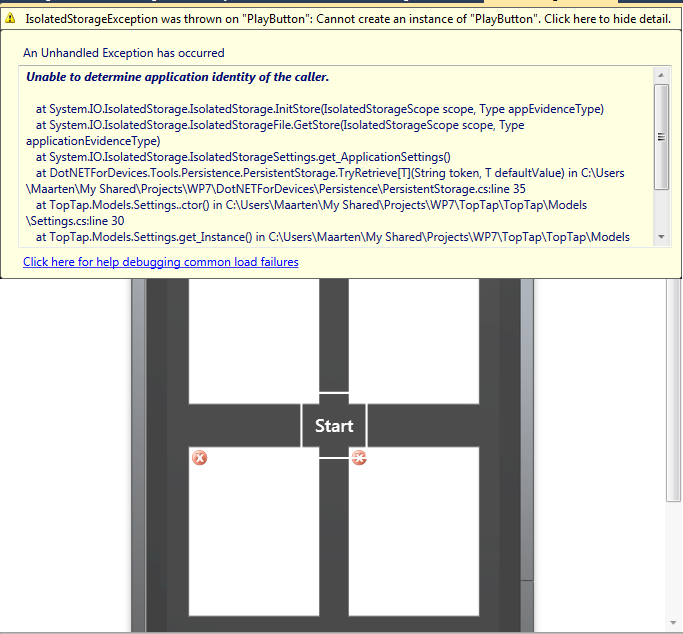
Interestingly enough, the exceptions occur due to IsolatedStorage issues when running constructor code of my UserControl’s. Looking at the code inside the constructor it was obvious that I wanted to access a few properties from my Settings class. Of course this class is not initialized in designer mode, meaning it tried to read the values from IsolatedStorage on my development machine. This caused the exceptions. At first I thought that this was a bad thing happening to me. However, it turns out that it is not bad at all that this particular error occurred. It started me thinking. It also made me realize that my ‘generic’ UserControl should not directly make use of application specific settings. After all, this would make my UserControl less generic. Instead, what I should have done is passing important settings to my UserControl from within my application. After all, the application knows when settings are available and where they are coming from, knowledge that the UserControl should not know anything about. A ‘perfect’ example of a situation where design time errors inside Visual Studio 2010 helped me to make my application better.
Windows Phone 7 and WebClient
Inspired by Rob Tiffany’s great series of articles around Windows Phone 7 Line of Business Application Development I started playing with a Windows Phone 7 Client / Azure Service combination. Since I really want to understand what is happening under the hood, my samples are usually extremely simple, yet explaining a lot about the used technology. Developing Windows Phone 7 applications however often makes me feel blind and curious. As an application developer, Windows Phone 7 appears much as a black box. Of course I know that I am running a managed application inside a Sandbox, but it would be able to sometimes take a look inside the box. Take the following scenario:
I have created a small WCF based Azure REST service. It has the following extremely simple functionality:
-
Store a single numeric value (BaseURI/setdata?number={value})
-
Retrieve the stored value (BaseURI/getdata)
I also created a Windows Phone 7 application that can used this service to store / retrieve a single number. Retrieving data from the service can be done using the following code snippet:
- private void GetWithLocalWebClient(object param)
- {
- WebClient wc = new WebClient();
- wc.BaseAddress = IsDevice ? azureServerBaseAddress : localServerBaseAddress;
- wc.DownloadStringCompleted +=
- new DownloadStringCompletedEventHandler(wc_DownloadStringCompleted);
- wc.DownloadStringAsync(new Uri("getdata", UriKind.Relative));
- }
- void wc_DownloadStringCompleted(object sender, DownloadStringCompletedEventArgs e)
- {
- WebClient wc = sender as WebClient;
- if (wc != null)
- wc.DownloadStringCompleted -= wc_DownloadStringCompleted;
- RawRESTServiceData = e.Result;
- }
In this code snippet, each time the number is retrieved from the service, a new object of type WebClient is created that is used only once. The code to store a number in the cloud is very simple as well:
- private void SetNumber(object param)
- {
- webClient.UploadStringAsync(
- new Uri("setdata?number=" + Number, UriKind.Relative), string.Empty);
- }
To store a number, I am using another instance of WebClient, with a base URL set. This same instance can also be used to retrieve the number from the service, so my application has the possibility to retrieve a single number from an Azure hosted web service in different ways.
 While testing the application, I started by retrieving the number that is currently stored in my Azure service, followed by storing a new number in the cloud and again retrieving the number that is currently stored. As you can see in the following screen dump, the last retrieval came with an unexpected result (1 instead of 3). Where did my stored number go?
It turns out that the WebClient is caching data, and it appears it does so to the extreme. Even if I create a new WebClient, it still uses cached data which is a complete surprise to me. On one hand this seems like a good thing, because it will result in less calls being made to the cloud, thus saving valuable resources. At the same time, it seems like a bad thing. What if my cloud data is updated and I still want to retrieve it through a REST call? Especially when creating a new WebClient object I think it would be reasonable to assume that a ‘real’ call will be made to my Azure service.
To resolve this potential issue, there is an easy solution. Just decorate the REST call with a unique string. Of course I don’t want to do this always, since that means that I am always physically calling out to the service. By re-using the last decorated REST call until I want to force a refresh of my data, I kind of have the best of both worlds available.
- private void GetCachedWithUri(object param)
- {
- webClient.DownloadStringAsync(cachedUri);
- }
- private void GetUncached(object param)
- {
- cachedUri = new Uri("getdata?ticks=" + Environment.TickCount, UriKind.Relative);
- webClient.DownloadStringAsync(cachedUri);
- HasSavedUri = true;
- }

Retrieving the data from the service without caching gives the expected result. Be aware though that the original cached data is still stored, so retrieving cached afterwards again gives us the original (cached) value.
Be aware of this behavior inside your own applications. The following video explains the caching behavior of the WebClient class in more detail:
WebClient caching behavior on Windows Phone 7
This explanation ofthe WebClient caching behavior will hopefully help you creating better Windows Phone 7 applications and save you time trying to understand what is going on behind the scenes.
Check this out
A great way to blog on the road with my brand new Windows Phone 7 (a Samsung Omnia 7). No more excuses to not blog on the road.
Posted from WordPress for Windows Phone
A new blog
In order to keep up-to-date with modern blogging software, it was about time to refresh the blog I have so far been using at DotNETForDevices. The blog entries will focus more on Windows Phone 7, although relevant Windows Embedded topics will be covered as well.
 IoTForDevices